
How to Use Variation Swatches in WooCommerce to Improve Product Display
Read Time:5 Minute, 57 Second
Introduction
Imagine browsing online shopping for a t-shirt, and instead of the typical dropdown menu offering color options you see beautiful color circles or images to give a better understanding of how the product will appear. Which option would you go with? Most shoppers will opt for visually appealing choices.
WooCommerce variation swatches provide the solution: they enhance product displays to make selecting their ideal option easier for customers. From clothing and accessories to furniture sales, variation swatches can improve user experience and drive sales growth.
We will dive deep into WooCommerce variation swatches, why they matter and how to utilize them to create stunning product displays. In addition, we will introduce useful plugins from Extendons which make setting up variation swatches a snap!
What Are WooCommerce Variation Swatches?
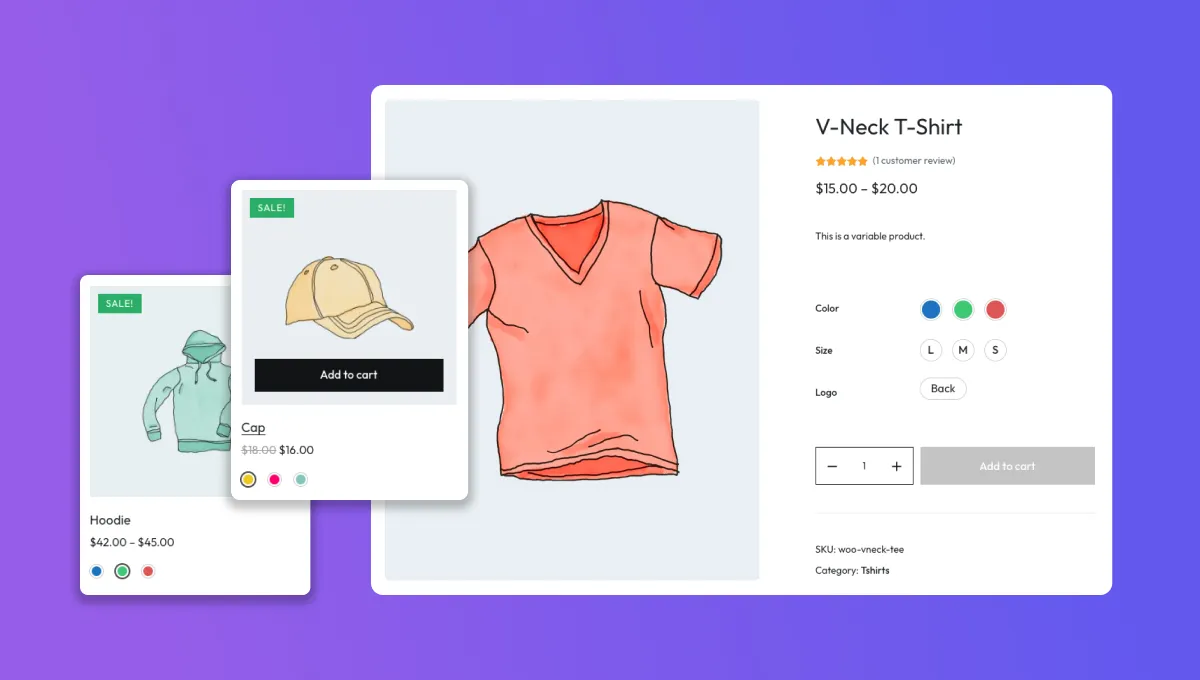
WooCommerce variation swatches replace standard dropdown menus for product variations with dynamic selection methods such as color swatches, images, labels or buttons in order to make the selection process more engaging and user-friendly.
If you offer multiple-color shoes, instead of listing all options as dropdown menu items, displaying color swatches allows customers to see all available choices instantly without clicking through multiple pages.
Variation Swatches
- Color Swatches – Show color choices as clickable color circles.
- Image Swatches – Present variations in patterns or textures that represent variations.
- Text Label Swatches – Provide text labels representing sizes, materials or styles of variation swatches.
- Button Swatches – Make your store visually pleasing while helping customers make quicker decisions by displaying variation choices in button format for improved visibility.
By employing variation swatches, your business becomes visually appealing while speeding up decision making processes for customers.
Why Should You Utilize Variation Swatches in WooCommerce?
1. Enhances User Experience
To provide customers with an enjoyable shopping experience, using variations swatches for WooCommerce improves customer satisfaction by providing an intuitive selection process – rather than clicking through dropdown menus buyers can quickly identify and select their variation(s).
2. Reduce Confusion and Returns
When customers see what they are buying clearly, they are less likely to make mistakes that cause returns and increase customer confidence. This results in decreased return rates and an increase in buyer trust.
3. Increase Conversions and Sales
Engaging product displays keep customers engaged, increasing the chance that they make a purchase. A smooth shopping experience leads to higher sales figures.
4. Creates A Professional Image
A clean and modern product display makes your WooCommerce store appear more credible and trustworthy, distinguishing you from competitors.
How to Add Variation Swatches to Your WooCommerce Store
Adding variation swatches requires the installation of an additional plugin as WooCommerce doesn’t include them by default.
Let’s walk through an in-depth tutorial using an effective variation swatches plugin.
Step 1: Install a WooCommerce Variation Swatches Plugin
There are various plugins that can help you add variation swatches to WooCommerce; one highly recommended choice is WooCommerce Variation Swatches by Extendons.
How to Install the Plugin
- Navigating Your Dashboard for WooCommerce Variation Swatches by Extendons
- You should now see “Plugins > Add New.”
- Once found, search “WooCommerce Variation Swatches by Extendons”, Install Now, Activate it and complete Step Two for Configuring its Settings
Step 2: Configure the Plugin Settings
Once the plugin has been activated, follow these steps to setup variation swatches:
- At WooCommerce > Variation Swatches in your dashboard, enable Color, Image, Label or Button Swatches according to product types.
- Adjust their size, shape and border so it fits seamlessly with the design of your store.
Step 3: Assign Variation Swatches to Products
- Navigate to Products > All Products and choose one variable product.
- Scroll down to Product Data section, click Variations, select Swatch Type for each Variation.
- Swatch Type is Color Swatch for Each variation, if required, upload color samples/images as necessary before saving and updating product.
Step 4: Preview and Test Variation Swatches
Check your product page to make sure your swatches are displaying properly by clicking through to each variation to verify that images and prices update accordingly.
Best WooCommerce Variation Swatches Plug-ins
WooCommerce doesn’t offer built-in variation swatches, so plugins make adding them easy. Here are a few top ones:
1. WooCommerce Variation Swatches by Extendons
This plugin provides one of the best solutions for easily adding color, image, label and button swatches into WooCommerce products. It is user friendly and customizable while improving overall shopping experiences.
2. WooCommerce Variation Swatches and Photos
This plugin enables store owners to replace dropdown menus with color and image swatches for easier store navigation. It is a straightforward solution.
3. Variation Swatches for WooCommerce by GetWooPlugins
This premium plugin features advanced customization features such as tooltip support and swatch styling capabilities, making this a must-have!
Each of these plugins enhances WooCommerce product display, making it simpler for customers to select variations.
Best Practices for Using Variation Swatches
1. Use High-Quality Images
When customers decide to make purchasing decisions, they often rely on images, so make sure your variation swatches have clear and high-resolution pictures that they can refer to when making purchasing decisions.
2. Keep Swatches Consistent
To provide an effortless shopping experience, consistently designed color, image and button swatches will enhance the user’s shopping experience.
3. Test on Mobile Devices
Many shoppers browse on mobile devices. Ensure your variation swatches work smoothly across different screen sizes by testing your product on multiple mobile phones and testing all different sizes of screens.
4. Avoid Overload with Too Many Options
To prevent customers from being overwhelmed with too many variations for one product, group similar ones together into groups for sale to prevent customer overload.
Frequently Asked Questions (FAQs)
1. Do I require a plugin in order to use WooCommerce Variation Swatches?
Yes. By default, WooCommerce does not support variation swatches; thus you will require one such as WooCommerce Variation Swatches by Extendons in order to add this feature.
2. Can I mix color and image swatches when creating products?
Yes, many plugins allow for mixing various swatch types for an enhanced product display experience.
3. Will variation swatches slow down my website?
When implemented properly, variation swatches shouldn’t slow down your site. A lightweight plugin and optimized images are key components to maintaining fast loading speeds for optimal performance.
4. Are WooCommerce variation swatches mobile-friendly?
Yes, most plugins are responsive and work well on mobile devices. Always conduct tests on different screens to ensure usability.
5. Am I able to customize the appearance of variation swatches?
Plugins offer flexibility when it comes to customizing variation swatches to meet your store’s branding – in terms of size, shape, border widths and hover effects.
Conclusion
Utilizing WooCommerce variation swatches is an easy and effective way to enhance product display and increase sales. They make product selection simpler, improve the shopping experience and give your store an organized appearance.
By using an efficient plugin such as WooCommerce Variation Swatches by Extendons, you can easily create color, image, label and button swatches in just a few steps.
Add variation swatches today if you want to boost conversions and create an eye-catching WooCommerce store – they will turn product pages into engaging shopping experiences that customers will want to visit!

Happy
0 %

Sad
0 %

Excited
33 %

Sleepy
0 %

Angry
0 %

Surprise
67 %
 1
1
 2
2